
How to Run AI Locally: What to Install on Windows and Linux
Learn how to run artificial intelligence locally on Windows and Linux. Detailed instructions on installing the necessary libraries and software for effective AI operation.
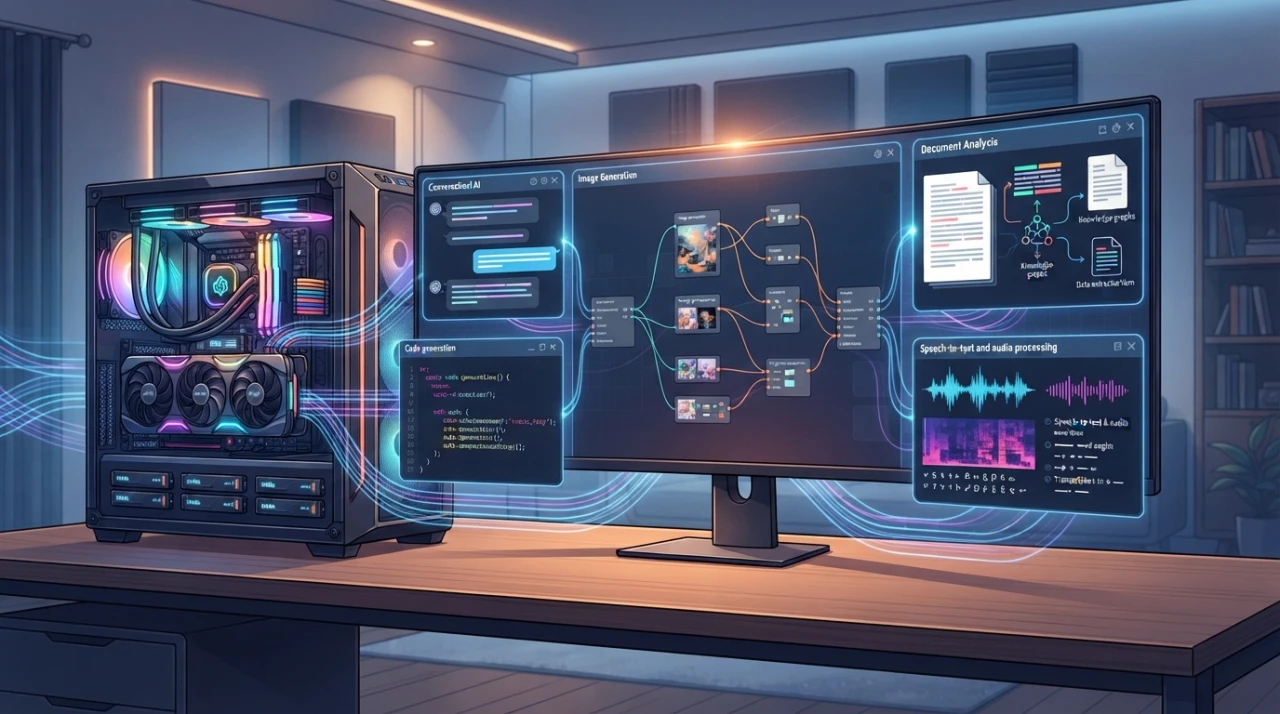
If you already have a sufficiently powerful computer or are considering buying a new one, it’s worth keeping in mind that you can run AI models locally on it. The key components are primarily the graphics card and amount of RAM.
At home, I use a NVIDIA GeForce RTX 5060 Ti with 16 GB of VRAM for development. It's not the most expensive graphics card, but it was important for me to get the 16 GB version rather than the 8 GB one. Modern models quickly consume VRAM, and even relatively small ones may not fit in 8 GB.
My computer also has 128 GB of RAM. If the model does not fit entirely in video memory, some data can be transferred to regular RAM. It will work slower than if fully on the graphics card, but the model will at least run. For most medium-sized models, this configuration is sufficient for me.
In practice, when running AI locally, I primarily look at the amount of VRAM. The performance of the graphics card is also important, but the extra gigabytes of VRAM often turn out to be more beneficial than a slight speed increase.
The processor also participates in the system's operation, but the main calculations are performed by the graphics card under normal settings. Therefore, when building a computer for local AI, I would first invest in the GPU and memory, and only then choose the processor.
Another point that's easy to forget is free disk space. Model weights take up a lot of space. A typical model can weigh several tens of gigabytes, while large models can weigh hundreds. If you want to download several variants and compare them, free SSD space runs out pretty quickly.
Nowadays, many AI models can be run directly on your computer. They are capable of writing and editing texts, assisting with code, processing documents, creating images, and transcribing audio.
However, there can be confusion with programs. Ollama, LM Studio, Open WebUI, ComfyUI, and AnythingLLM are often mentioned together, even though they are designed for different tasks.
I’ve compiled a list of programs that are genuinely worth using. We will separately discuss what is easier to install on Windows and what works better on Linux.
In Short: What to Choose
- LM Studio — easy launch of language models on Windows and Linux.
- Ollama and Open WebUI — local AI server with a user-friendly interface.
- ComfyUI — image generation, video, and complex node processes.
My recommendation: don’t install ten similar programs at once. Start by choosing one program for text and one for images. You can add more later once you identify what you’re missing.
What AI Models Can Be Run at Home
Most often, several types of models are run locally.
Language Models, or LLMThey work with text. They answer questions, write code, translate, summarize articles, and help analyze documents.
Diffusion ModelsThey create and edit images. This category includes Stable Diffusion, SDXL, Flux, and other graphic models.
Speech Recognition ModelsThey convert speech from audio or video into text. The most well-known example is Whisper.
Multimodal ModelsThey work with both text and images. A multimodal model can be shown a photograph, diagram, or screenshot and be asked questions about the content.
There isn't yet one program that handles all these tasks equally well. Therefore, it's better to choose applications tailored for specific tasks.
LM Studio — The Easiest to Start on Windows
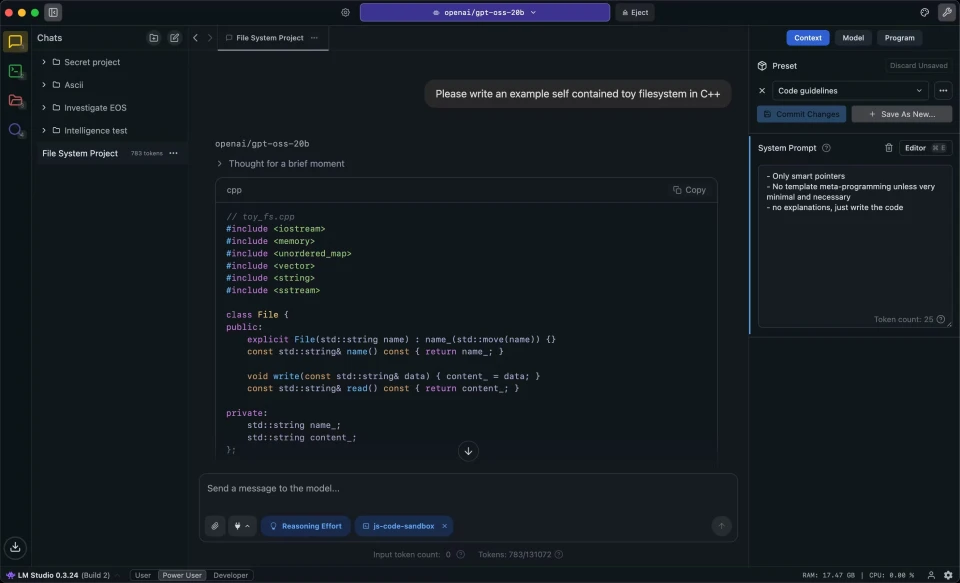
If you need to download a language model and open a chat immediately, I would start with LM Studio.
It’s a regular desktop application. Inside, there is a model search feature, download capabilities, and a dialogue window. You don't need to separately install Python, Docker, or deal with commands in the terminal.
LM Studio is suitable for the following tasks:
- interacting with a local neural network;
- writting and checking code;
- translating and editing texts;
- comparing different language models;
- working with models in GGUF format;
- launching a local API.
The program is available for Windows, Linux, and macOS. However, it’s particularly convenient on Windows: just download the installer, select a model, and you can get to work.
Download LM Studio from the official website
Who it's for: Those who are launching LLM on their computer for the first time and do not want to start with the terminal.
Ollama — When You Need More Than Just Chat
Ollama also launches language models but is structured a bit differently. It is primarily a local engine and server that can be connected to other programs.
With Ollama, you can link the model to a website, Telegram bot, code editor, your own script, or web interface.
Launching the model looks something like this:
ollama run qwen3Ollama will download the necessary files and launch the model. After that, you can work with it through the terminal or local API.
I would use Ollama for the following tasks:
- creating your own AI assistant;
- processing texts through API;
- connecting AI to a website or program;
- working with code editors;
- launching models on a home server;
- accessing one model from multiple devices.
Ollama works on Windows, Linux, and macOS. There’s a standard installer for Windows. On Linux, it’s convenient to keep it running as a system service.
Download Ollama from the official website
View available models for Ollama
Open WebUI — A Convenient Interface for Ollama
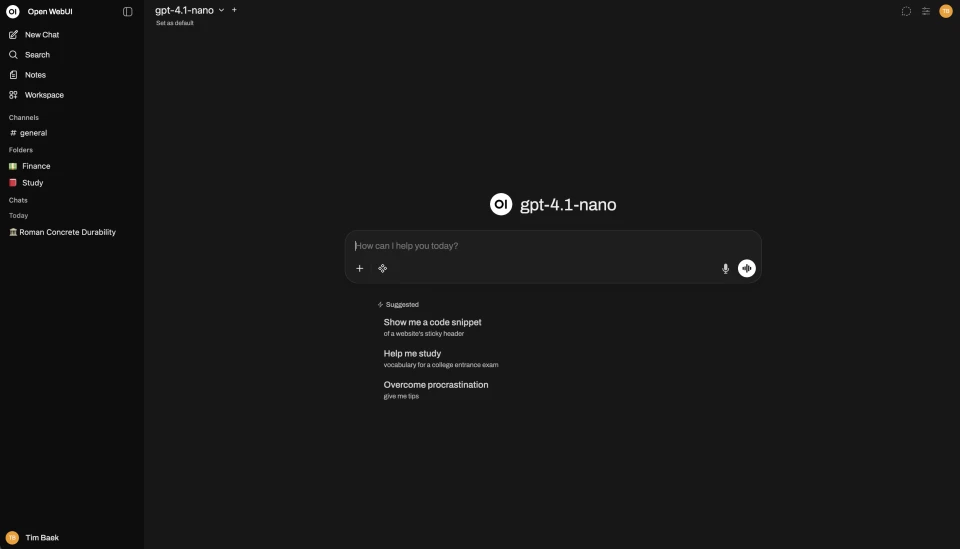
Ollama can work through the terminal, but for regular communication, this often isn’t enough. Therefore, Open WebUI is often installed alongside it.
This is a web interface that looks similar to ChatGPT. It features chat history, model selection, users, file upload capabilities, and knowledge base management.
Ollama — launches language modelsOpen WebUI — provides a convenient interfaceOn Linux, I would more often choose this combination, especially if the computer works as a home server and I need to open the chat from a laptop, phone, or another computer.
Open WebUI also works on Windows. But if you only need a simple local chat, it's easier to install LM Studio.
The most common way to install Open WebUI is via Docker:
docker run -d \ -p 3000:8080 \ -v open-webui:/app/backend/data \ --name open-webui \ --restart always \ ghcr.io/open-webui/open-webui:mainAfter launching, the interface will open at:
http://localhost:3000Official installation instructions for Open WebUI
Jan — A Simple Local Chat for Windows and Linux

Jan resembles LM Studio. It’s a ready-to-use application with a chat window, model loading capabilities, and local data storage.
I particularly like it as an option for Linux when I don't want to install Docker and set up a separate web interface. You can install the program, download a model, and start working right away.
Jan is suitable for those who need:
- a regular local chat;
- a clear graphical interface;
- working with GGUF models;
- storing history on their computer;
- support for Windows and Linux.
For Linux, Flatpak, AppImage, and DEB packages are available. For Windows, there is a standard installer.
The capabilities of Jan and LM Studio overlap significantly. There’s no need to install both programs at once. I would try each and keep the one whose interface seems more convenient.
Download Jan from the official website
GPT4All — If You Don’t Have a Powerful Graphics Card
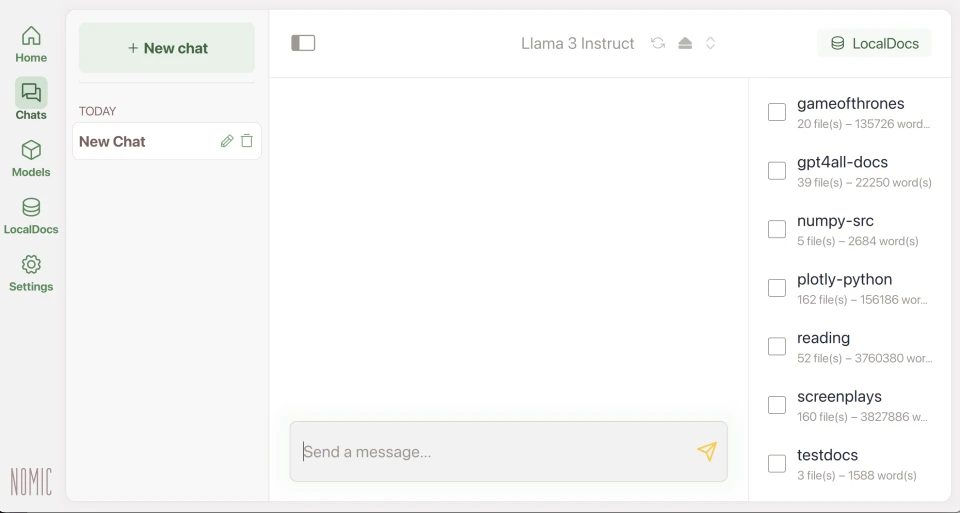
GPT4All is designed for regular computers and laptops. Small language models can run on the CPU using RAM.
Without a graphics card, responses will appear more slowly. But for short requests, translations, drafts, and working with small documents, this is often sufficient.
GPT4All features:
- a model catalog;
- local chat;
- working with personal files;
- local API;
- versions for Windows, Linux, and macOS.
I would consider GPT4All in two cases: if a computer does not have a discrete graphics card or if one wants to quickly check how convenient it is to work with local models.
Download GPT4All from the official website
AnythingLLM — When You Need to Work with Your Documents

A typical language model does not know what is in your PDFs, instructions, and work files. For such tasks, you can use AnythingLLM.
Documents can be uploaded to the program, after which questions can be asked about the content. For example, gathering technical documentation, instructions, notes, or an archive of articles all in one place.
AnythingLLM is useful for:
- analyzing PDFs and text documents;
- searching for information in one’s own files;
- creating a personal knowledge base;
- working with technical documentation;
- creating individual workspaces;
- connecting local models and AI agents.
For a single user, it’s easier to take the desktop version. If several people will use the system, a server version can be deployed.
AnythingLLM is available for Windows, Linux, and macOS.
Download AnythingLLM from the official website
ComfyUI — For Images and Videos

For local image generation, I would choose ComfyUI.
At first glance, the program may feel unfamiliar. Instead of the usual form with a prompt, there’s a schema made up of blocks on the screen. One block loads the model, another processes the text, a third creates the image, and a fourth saves the result.
After a while, you get used to it. Then it's clear why ComfyUI is so popular: each step can be modified separately, allowing for custom processes.
ComfyUI is used for:
- image generation;
- working with Stable Diffusion, SDXL, and Flux;
- editing individual parts of an image;
- increasing resolution;
- connecting LoRA and ControlNet;
- batch generation;
- creating animations and videos;
- building complex processes from multiple models.
How to Install ComfyUI on Windows
On Windows, the easiest way is to use the official Comfy Desktop or the portable version of ComfyUI. The desktop application manages Python, dependencies, and installed instances of ComfyUI by itself.
How to Install ComfyUI on Linux
For Linux, it's more reliable to use a manual installation through Python or build Comfy Desktop from the source code. The ready-made desktop version for Linux is not yet officially supported as well as the version for Windows.
Download ComfyUI from the official website
Official manual installation instructions for ComfyUI
If you only need a "create image" button, ComfyUI may seem complicated. But for continuous work with images, I would still choose it. The capabilities grow alongside your tasks, and there won’t be a need to switch programs a month later.
Stable Diffusion WebUI Forge — A More Familiar Interface

Not everyone likes the nodes and schemas of ComfyUI. In that case, you can install Stable Diffusion WebUI Forge.
Here everything looks more familiar: a prompt field, model selection, image size, number of steps, and a launch button.
Forge is suitable for:
- regular image generation;
- working with Stable Diffusion and SDXL models;
- using LoRA;
- connecting ControlNet;
- increasing resolution;
- working through the familiar Stable Diffusion WebUI interface.
For first-time use, Forge may seem simpler. However, if you need to build complex processes, combine multiple models, or automate generation, ComfyUI will be more convenient.
Official repository of Stable Diffusion WebUI Forge
Buzz and whisper.cpp — Audio and Video Transcription
For speech recognition, it’s convenient to use Buzz. This is a graphical program that works with Whisper models and converts speech from audio or video into text.
Buzz can:
- transcribe audio recordings;
- extract speech from videos;
- recognize different languages;
- create subtitles;
- save results in TXT, SRT, and VTT formats;
- work locally after downloading the model.
Buzz is available for Windows, Linux, and macOS. On Linux, it can be installed via Flatpak or Snap.
flatpak install flathub io.github.chidiwilliams.BuzzDownload Buzz and open installation instructions
When to Use whisper.cpp
If you need to integrate speech recognition into a website, server, or your own program, I would choose whisper.cpp.
It does not have as user-friendly a desktop interface, but it is easier to run from scripts and connect to your projects.
Official repository of whisper.cpp
What to Install for Local AI on Windows
On Windows, I would start with the following set:
| Task | Program | Why This One |
|---|---|---|
| Local chat and texts | LM Studio | Easy installation and ready-made interface |
| API and automation | Ollama | Easy to connect to programs and scripts |
| Working with documents | AnythingLLM | Can work with PDFs and local files |
| Images and videos | ComfyUI Desktop | Suitable for both simple and complex processes |
| Simple Stable Diffusion interface | Forge | Familiar fields, settings, and buttons |
| Audio transcription | Buzz | Has a ready-made graphical interface |
For starters, LM Studio and ComfyUI will suffice. Ollama should be added when API, automation, or connecting AI to projects is necessary.
What to Install for Local AI on Linux
On Linux, I would assemble the system a bit differently:
| Task | Program | How to Use |
|---|---|---|
| Regular local chat | Jan or LM Studio | Desktop program without a separate server |
| Home server with LLM | Ollama and Open WebUI | Run in the background, chat opened via browser |
| Working with documents | AnythingLLM | Can install either desktop or server version |
| Images and videos | ComfyUI | Better to use manual installation |
| Audio transcription | Buzz | Installation via Flatpak or Snap |
| Speech recognition via API | whisper.cpp | Suitable for scripts and server applications |
For a desktop computer, I would suffice with Jan or LM Studio. For a home server, I would choose Ollama and Open WebUI.
How Much Memory Is Required for Local AI
Requirements depend not so much on the program but on the model itself. The main limitations are the amount of RAM and VRAM.
| Hardware | What Tasks It Suits |
|---|---|
| 16 GB of RAM | Small LLMs and many quantized models of 7B or 8B class |
| 32 GB of RAM | Larger models, long texts, and running several programs simultaneously |
| 6–8 GB of VRAM | Small LLMs and basic image generation |
| 12–16 GB of VRAM | More comfortable work with images and medium-sized models |
| 24 GB of VRAM and above | Large LLMs, high resolution, and complex processes in ComfyUI |
Language models also work without a graphics card. They just respond more slowly.
It gets trickier with images. The newer the model and the higher the resolution, the more memory it requires.
It’s also worth freeing up SSD space in advance. One model can take several tens of gigabytes. When you start comparing different versions, the free space runs out unexpectedly quickly.
All figures are approximate. Memory consumption is influenced by model size, quantization, context length, image resolution, and the software engine used.
Where to Download Local Models
Many programs have their model catalogs. For instance, in LM Studio and GPT4All, you can find models directly within the application, while Ollama uses its own library.
The largest catalog of open models is on Hugging Face. There you can find language, graphic, voice, and multimodal models.
Open the Hugging Face model catalog
Download programs from official websites and check the license for the chosen model. Some models can be freely used at home but cannot be applied in commercial projects without additional conditions.
Ollama or LM Studio: Which to Choose
This question arises most often, although the programs do not really compete with each other.
LM Studio is what I would choose for regular computer work. It’s simpler, clearer, and requires almost no configuration.
Ollama is necessary when the model needs to function as a service. For example, taking requests from a website, program, code editor, or bot.
| Criterion | LM Studio | Ollama |
|---|---|---|
| Interface | Ready-made desktop application | Terminal, API, or separate interface |
| Ease of Launch | Easier for beginners | Requires a bit more configuration |
| API Support | Supported | One of the program’s main tasks |
| Home Server | Can be used | Better suited |
| Quick Model Comparison | Very convenient | Convenient via commands and API |
Both programs can be used. LM Studio is handy for quickly testing new models, while Ollama can be kept for ongoing work and automation.
Can Local AI Be Used Without the Internet
After installing the program and downloading the model, the internet is usually no longer needed in most cases.
Requests are processed on the computer. Texts, documents, and images do not need to be sent to the cloud unless you yourself have connected an external service.
The internet will still be needed for:
- initially downloading the program;
- loading models;
- installing additional components;
- updating applications and extensions;
- connecting web search.
There is also another limitation. The local model does not know what happened today. For it to receive fresh information, you will have to separately connect web searching, an API, or your own database.
What to Ultimately Choose
I would not recommend starting with a large number of programs. It’s better to first understand what specifically you want to do.
- For texts and code — LM Studio, Jan, or Ollama.
- For a home AI server — Ollama and Open WebUI.
- For PDFs and personal documents — AnythingLLM.
- For images and videos — ComfyUI.
- For a simpler Stable Diffusion interface — Forge.
- For audio transcription — Buzz or whisper.cpp.
On Windows, it’s easiest to start with LM Studio and ComfyUI Desktop.
On Linux, I would choose Jan for a regular chat or Ollama with Open WebUI for a server. For images, ComfyUI would work in both cases.
This set is sufficient for almost all home tasks. Other programs should make sense to install only after it becomes clear what exactly is missing.
Frequently Asked Questions
On Windows, it’s easiest to start with LM Studio. On Linux, Jan or LM Studio would do. For a home server, it’s better to use Ollama along with Open WebUI.
Can AI be launched without a graphics card?Yes. Small language models can run on the CPU and utilize RAM. The speed will be lower, but this is often sufficient for texts, translations, and code.
How does Ollama differ from LM Studio?LM Studio is a ready-made desktop application with an interface. Ollama is a local engine and API that can connect to other applications.
What to use for Stable Diffusion and Flux?For ongoing and complex work, it’s better to use ComfyUI. If you need a more familiar interface with standard settings and buttons, Forge is a good starting point.
Where are local models stored?They are downloaded to the computer’s disk. The folder depends on the program. It can usually be changed in the application settings.
Can the internet be completely disconnected?Yes, if the program and model have already been downloaded. But without a separate web search, the model won’t receive up-to-date information.